Showing posts with label Lesson VB 2013. Show all posts

Search Data In Database Using VB Net 2013

2:14:00 PM 0
In this tutorial I will share about : How to Search Data In Database Using VB Net 2013. in this step I use database SQL Server and VB NET 2013.

Please following below :
Create Database and Tabel
Create Database : DB_MYPP
Create Table : TBL_PRODUCT
Add sample data in TBL_PRODUCT


2. Design Form and Place a Code

Place code below at Form1
Imports System.Data.SqlClient
Public Class Form1
    Dim Conn As SqlConnection
    Dim da As SqlDataAdapter
    Dim ds As DataSet
    Dim CMD As SqlCommand
    Dim RD As SqlDataReader
    Dim DBLocation As String
    Sub OpenDB()
        DBLocation = "data source=COMPUTERNAME;initial catalog=DB_MYAPP;integrated security =true"
        Conn = New SqlConnection(DBLocation)
        If Conn.State = ConnectionState.Closed Then Conn.Open()
    End Sub
 
    Private Sub Form1_Load(sender As Object, e As EventArgs) Handles MyBase.Load
        OpenDB()
        da = New SqlDataAdapter("Select * from TBL_PRODUCT", Conn)
        ds = New DataSet
        ds.Clear()
        da.Fill(ds, "TBL_PRODUCT")
        DataGridView1.DataSource = (ds.Tables("TBL_PRODUCT"))
    End Sub
    Private Sub TextBox1_TextChanged(sender As Object, e As EventArgs) Handles TextBox1.TextChanged
        Call OpenDB()
        CMD = New SqlCommand("select * from TBL_PRODUCT where PRODUCT_NAME like '%" & TextBox1.Text & "%'", Conn)
        RD = CMD.ExecuteReader
        RD.Read()
        If RD.HasRows Then
            Call OpenDB()
            da = New SqlDataAdapter("select * from TBL_PRODUCT where PRODUCT_NAME like '%" & TextBox1.Text & "%'", Conn)
            ds = New DataSet
            da.Fill(ds, "GetDataProduct")
            DataGridView1.DataSource = ds.Tables("GetDataProduct")
            DataGridView1.ReadOnly = True
        End If
    End Sub
End Class

You can start or run your Project, Thanks for visiting BelajarVB and dont forget to comment below


Show Record Data Database In ComboBox VB 2013

2:09:00 PM 0

In this tutorial I will share about : how to Show Record Data Database In ComboBox VB NET 2013. in this step below I use database SQL Server. if you dont have SQL Server please prepare to install SQL Server.

Please following below :
#1. Create Database and Table using SQL Server
Create Database : DB_MYAPP
Create Table : TBL_PRODUCT with design table like below picture

Fill sample data in TBL_PRODUCT


See also : How to Show Date and Time in Form VB Net 2013

#2. Design Form and Place a Code

Fill Below code at Form1.vb

Imports System.Data.SqlClient
Public Class Form1
    Dim Conn As SqlConnection
    Dim da As SqlDataAdapter
    Dim ds As DataSet
    Dim CMD As SqlCommand
    Dim RD As SqlDataReader
    Dim DBLocation As String
    Sub Show_tbl_data()
        Call OpenDB()
        ComboBox1.Items.Clear()
        CMD = New SqlCommand("select * FROM TBL_PRODUCT", Conn)
        RD = CMD.ExecuteReader
        Do While RD.Read
            ComboBox1.Items.Add(RD.Item(0))
        Loop
    End Sub
    Sub OpenDB()
        DBLocation = "data source=COMPUTERNAME;initial catalog=DB_MYAPP;integrated security =true"
        Conn = New SqlConnection(DBLocation)
        If Conn.State = ConnectionState.Closed Then Conn.Open()
    End Sub
    Private Sub Form1_Load(sender As Object, e As EventArgs) Handles MyBase.Load
        OpenDB()
        da = New SqlDataAdapter("Select * from TBL_PRODUCT", Conn)
        ds = New DataSet
        ds.Clear()
        da.Fill(ds, "TBL_PRODUCT")
        DataGridView1.DataSource = (ds.Tables("TBL_PRODUCT"))
        Call Show_tbl_data()
    End Sub
End Class

Please start or run your project, thanks for visiting BelajarVB and dont forget to comment below


VB 2013 - Database SQL Server Connection

10:39:00 PM 0
In This tutorial I will share about How to connect database SQL Server in VB NET 2013. There are three step to connected Database SQL Server :
  • Step 1: Create New Project use VB 2013
  • Step 2 :Create database and table in MS Access 2003
  • Step 3 : Design form in VB .Net 2013

Step : 1
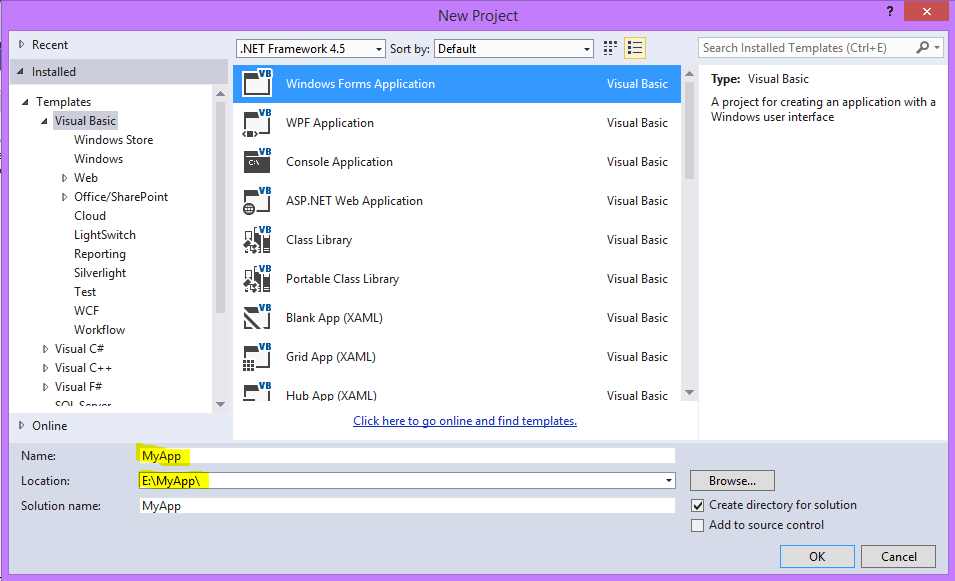
Click Visual Studio 2013

Click FILE - New - Project..
after that like below picture :
Click OK
After that, please follow STEP 2

Step 2 :
Create Database and Table in SQL Server
Please create database with name : DB_MYAPP
Create Table with name : TBL_PRODUCT
Fill data for sample in TBL_PRODUCT
 #Step 3 :
Design form1 like below picture
Just add "Datagridview1" in Form1

Place below code at Form1
Imports System.Data.SqlClient
Public Class Form1
    Dim Conn As SqlConnection
    Dim da As SqlDataAdapter
    Dim ds As DataSet
    Dim DBLocation As String
    Sub OpenDB()
        DBLocation = "data source=COMPUTERNAME;initial catalog=DB_MYAPP;integrated security =true"
        Conn = New SqlConnection(DBLocation)
        If Conn.State = ConnectionState.Closed Then Conn.Open()
    End Sub
   
    Private Sub Form1_Load(sender As Object, e As EventArgs) Handles MyBase.Load
        OpenDB()
        da = New SqlDataAdapter("Select * from TBL_PRODUCT", Conn)
        ds = New DataSet
        ds.Clear()
        da.Fill(ds, "TBL_PRODUCT")
        DataGridView1.DataSource = (ds.Tables("TBL_PRODUCT"))
    End Sub
End Class
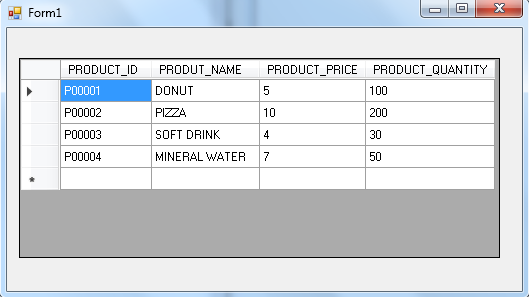
Here for the result :
Is it easy??? Thank you for visiting Blog BelajarVB and Stay tuned for our next lesson :)

How to Show Date and Time in Form VB Net 2013

1:23:00 AM 0
How to Show Date and Time in Form VB Net 2013
In this lesson VB NET 2013, I will share about How to Show Date and Time in Form VB Net 2013. Time and Date if very important to show in Form Transaction.

See also : How to Create Login Form POS Application

Open VB Net 2013 in your computer
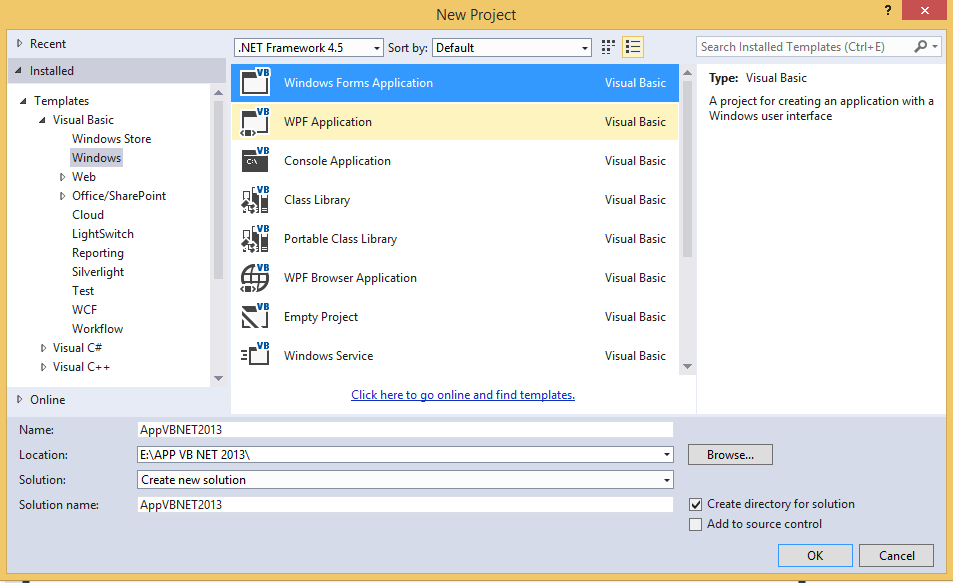
Click FILE - New Project
And then show below picture :
Click OK
Design Form1 like below picture :
and then place below code at Form1.vb
Public Class Form1

    Private Sub Form1_Load(sender As Object, e As EventArgs) Handles MyBase.Load
        Label4.Text = Today

    End Sub
    Private Sub Timer1_Tick(sender As Object, e As EventArgs) Handles Timer1.Tick
        Label3.Text = TimeOfDay
    End Sub
End Class
Don't forget to enable Timer1

Here for the result :

Is it easy??? Thank you for visiting Blog BelajarVB and Stay tuned for our next lesson :)

How To Set Column Width DatagridView VB Net 2013

12:54:00 AM 0
In this lesson VB NET 2013 we will give you tutorial about datagridview in VB Net 2013. GatagridView usually used for show data / record data in database. You can setting cloumn width in DatagridView for make form good looking.

see also : How to Display Data in ComboBox - VB Net 2013

After have show data in datagridview, you just place code below to set column width in the form :
For example :

DataGridView1.Columns(0).Width = 70
DataGridView1.Columns(1).Width = 150
DataGridView1.Columns(2).Width = 60
DataGridView1.Columns(3).Width = 60

With code above, you can change value width according to your wishes

Thank you for visiting Blog BelajarVB and Stay tuned for our next lesson :)

How to Display Data in ComboBox - VB Net 2013

9:37:00 PM 0
ComboBox in VB Net is most important to design form using VB Net. Combobox is also often use besides TextBox and button. In This tutorial I will share How to Display Data in ComboBox in VB Net 2013

See also : How To Set Column Width DatagridView VB Net 2013

For the first please open VB Net 2013
Click FILE - New Project
Click OK
and then design form like below picture at Form1.vb
Place below code at Form1

Public Class Form1
    Private Sub Form1_Load(sender As Object, e As EventArgs) Handles MyBase.Load
        ComboBox1.Items.Add("MALE")
        ComboBox1.Items.Add("FEMALE")

        ComboBox2.Items.Add("INDONESIA")
        ComboBox2.Items.Add("SINGAPORE")
        ComboBox2.Items.Add("MALAYSIA")
        ComboBox2.Items.Add("FILIPINA")
        ComboBox2.Items.Add("BRUNEY")
        ComboBox2.Items.Add("THAILAND")
        ComboBox2.Items.Add("ENGLAND")
        ComboBox2.Items.Add("USA")
    End Sub
End Class

Here for the result
Thanks for visiting BelajarVB.com and I'am happy if you comment in this blog :)

Create Login Form POS Application

3:34:00 AM 0
This is Step-5 how to build POS (Point Of Sale) Application using VB NET 2013

Step-1 : Create New Project POS Application Using VB Net 2013
Step-2 : Create Main Menu POS Application VB NET 2013 
Step-3 : Create Database and Table POS Application 
Step-4 : Create Database Connection Use Module VB NET 2013

Follow below steps to Create Form Login POS Application
Open Project POS Application before
Click - Project - Add Windows Form...
And then follow like below picture
Click Add
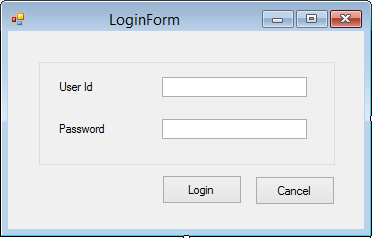
Design LoginForm.vb like below picture
Place below code at MainMenuForm

Public Class MainMenuForm
    Sub LockMenu()
        LoginToolStripMenuItem.Enabled = True
        LogoutToolStripMenuItem.Enabled = False
        MasterToolStripMenuItem.Enabled = False
        TransactionToolStripMenuItem.Enabled = False
        ReportToolStripMenuItem.Enabled = False
        UtilityToolStripMenuItem.Enabled = False
    End Sub
    Private Sub MainMenuForm_Load(sender As Object, e As EventArgs) Handles MyBase.Load
        Call LockMenu()
    End Sub

    Private Sub LoginToolStripMenuItem_Click(sender As Object, e As EventArgs) Handles LoginToolStripMenuItem.Click
        LoginForm.ShowDialog()
    End Sub

    Private Sub ExitToolStripMenuItem_Click(sender As Object, e As EventArgs) Handles ExitToolStripMenuItem.Click
        End
    End Sub
End Class
Place below code at LoginForm
Imports System.Data.OleDb
Public Class LoginForm
    Private Sub TextBox1_KeyPress(ByVal sender As Object, ByVal e As System.Windows.Forms.KeyPressEventArgs) Handles TextBox1.KeyPress
        If e.KeyChar = Chr(13) Then TextBox2.Focus()
    End Sub
    Private Sub TextBox2_KeyPress(ByVal sender As Object, ByVal e As System.Windows.Forms.KeyPressEventArgs) Handles TextBox2.KeyPress
        If e.KeyChar = Chr(13) Then Button1.Focus()
    End Sub
    Private Sub Button1_Click(ByVal sender As System.Object, ByVal e As System.EventArgs) Handles Button1.Click
        If TextBox1.Text = "" Or TextBox2.Text = "" Then
            MsgBox("Please fill form")
            Exit Sub
        Else
            Call OpenDB()
            CMD = New OleDbCommand("select * from TBL_USER where USER_ID='" & TextBox1.Text & "' and USER_PASSWORD='" & TextBox2.Text & "'", CONN)
            RD = CMD.ExecuteReader
            RD.Read()
            If RD.HasRows Then
                Me.Close()
                MainMenuForm.Show()
                MainMenuForm.LoginToolStripMenuItem.Enabled = False
                MainMenuForm.LogoutToolStripMenuItem.Enabled = True
                MainMenuForm.MasterToolStripMenuItem.Enabled = True
                MainMenuForm.TransactionToolStripMenuItem.Enabled = True
                MainMenuForm.ReportToolStripMenuItem.Enabled = True
                MainMenuForm.UtilityToolStripMenuItem.Enabled = True
            Else
                MsgBox("User id or Password is Incorrect")
            End If
        End If
    End Sub
    Private Sub Button2_Click(ByVal sender As System.Object, ByVal e As System.EventArgs) Handles Button2.Click
        Me.Close()
    End Sub
    Private Sub FormLogin_Activated(ByVal sender As Object, ByVal e As System.EventArgs) Handles Me.Activated
        TextBox1.Focus()
    End Sub
    Private Sub FormLogin_Load(ByVal sender As System.Object, ByVal e As System.EventArgs) Handles MyBase.Load
        TextBox1.MaxLength = 6
        TextBox2.PasswordChar = "X"
        TextBox1.Clear()
        TextBox2.Clear()
    End Sub
End Class
And then you can Run or start your POS Application
CLICK HERE to download source code project for step above
Please following Step-6 to continue build POS Application using VB NET 2013

Create Database Connection Use Module VB NET 2013

3:31:00 AM 0
This step is Step-4 how to build POS (Point Of Sale) Application using VB NET 2013

Step-1 : Create New Project POS Application Using VB Net 2013
Step-2 : Create Main Menu POS Application VB NET 2013 
Step-3 : Create Database and Table POS Application

Please follow below step
Open your POS Application before
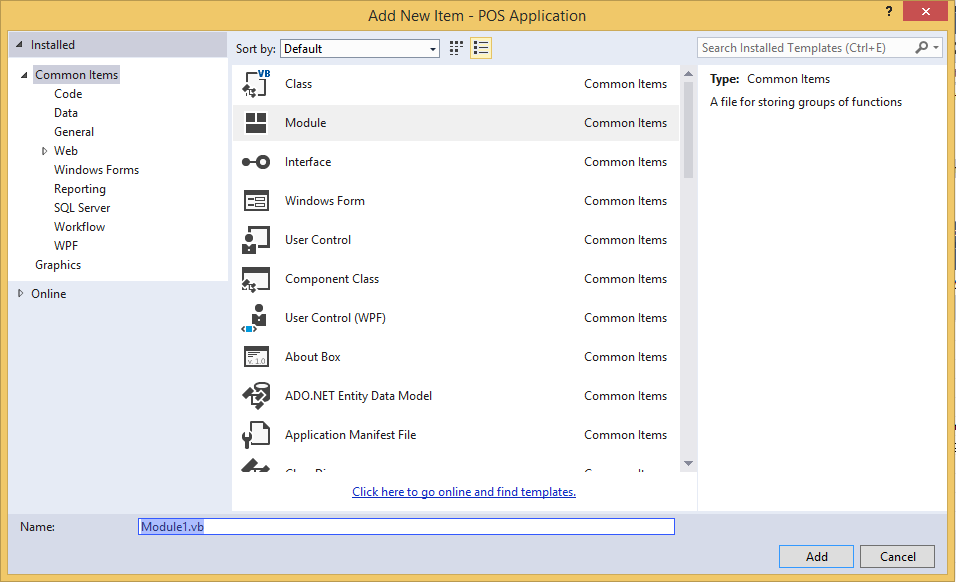
Click Project - Add Module
and then follow below picture
Click Add
and then please place code below

Imports System.Data.OleDb
Module Module1
    Public CONN As OleDbConnection
    Public CMD As OleDbCommand
    Public DS As New DataSet
    Public DA As OleDbDataAdapter
    Public RD As OleDbDataReader
    Public DBlocation As String
    Sub OpenDB()
        DBlocation = "Provider=Microsoft.ACE.OLEDB.12.0;Data Source=DBPOS.accdb"
        CONN = New OleDbConnection(DBlocation)
        If CONN.State = ConnectionState.Closed Then
            CONN.Open()
        End If
    End Sub
End Module

Click Save
Please following Step-5 to continue build POS Application using VB NET 2013