Showing posts with label VB 6.0 English Version. Show all posts

VB 6.0 - Simple Add, Edit & Delete Access 2003

6:46:00 PM 0
Here we will share about Simple Add, Edit & Delete Access 2003 in VB 6.0
  • Step 1: Create database and tabel in MS Access 2003
  • Step 2 : Design form in VB 6.0

#Step 1 :
Create Folder "AddEditDeleteVB6"
Create Database use MS Access 2003 inside Folder "AddEditDeleteVB6"
Database name : db.mdb
Table name : tbl_employee
design table like below picture :
fill sample Employee

#Step 2 :
Open Visual Basic 6.0
Standard EXE - Open
Add component
Click Apply - OK
Design Form1 like below picture

save your project inside Folder in same database db.mdb
and then place code below in form1 :
Dim Conn As New ADODB.Connection
Dim RSEmployee As ADODB.Recordset
Sub OpenDB()
Set Conn = New ADODB.Connection
Set RSEmployee = New ADODB.Recordset
Conn.Open "PROVIDER=Microsoft.Jet.OLEDB.4.0;Data Source=" & App.Path & "\DB.mdb"
End Sub
Private Sub Command1_Click()
    If Command1.Caption = "&Add" Then
        Command1.Caption = "&Save"
        Command2.Enabled = False
        Command3.Enabled = False
        Command4.Caption = "&Discard"
        ReadyFill
        Empty_form
        Call AutoID
        Text1.Enabled = False
        Text2.SetFocus
    Else
        If Text1 = "" Or Text2 = "" Or Text3 = "" Or Text4 = "" Then
            MsgBox "Please fill all form", vbInformation, "www.belajarvb.com"
            Text2.SetFocus
        Else
            Dim SQLTambah As String
            SQLAdd = "Insert Into TBL_Employee values ('" & Text1 & "','" & Text2 & "','" & Text3 & "','" & Text4 & "')"
            Conn.Execute SQLAdd
            MsgBox "Add data success", vbInformation, "www.belajarvb.com"
            Form_Activate
            Call Default_Form
        End If
    End If
End Sub

Private Sub Command2_Click()
    If Command2.Caption = "&Edit" Then
        Command1.Enabled = False
        Command2.Caption = "&Save"
        Command3.Enabled = False
        Command4.Caption = "&Discard"
        ReadyFill
        Text1.SetFocus
    Else
     'Call SearchData
        If RSEmployee.EOF Then
            MsgBox "Kode Employee Salah..!!!" & vbNewLine & "Masukan Kode Employee kemudian tekan [ENTER]", vbInformation, "www.belajarvb.com"
            Text1 = ""
            Text1.SetFocus
        ElseIf Text2 = "" Or Text3 = "" Or Text4 = "" Then
            MsgBox "make sure all the forms filled", vbInformation, "Information"
            Text2.SetFocus
        Else
        'End If
            OpenDB
            Dim SQLEdit As String
            SQLEdit = "Update TBL_Employee Set Name= '" & Text2 & "', Address='" & Text3 & "', Phone='" & Text4 & "' where Employee_Id='" & Text1 & "'"
            Conn.Execute SQLEdit
            MsgBox "Edit data success", vbInformation, "www.belajarvb.com"
            Form_Activate
        End If
    End If
End Sub

Private Sub Command3_Click()
    If Command3.Caption = "&Delete" Then
        Command1.Enabled = False
        Command2.Enabled = False
        Command4.Caption = "&Discard"
        Empty_form
        ReadyFill
        Text1.SetFocus
    End If
End Sub

Private Sub Command4_Click()
    Select Case Command4.Caption
        Case "&Close"
            Unload Me
        Case "&Discard"
            NoTReadyFill
            Default_Form
    End Select
End Sub

Private Sub Form_Activate()
Call NoTReadyFill
Call Empty_form
Call Default_Form
Call OpenDB
Adodc1.ConnectionString = Conn
Adodc1.RecordSource = "tbl_Employee"
Adodc1.Refresh
Set DataGrid1.DataSource = Adodc1
End Sub
Private Sub Form_Load()
Call OpenDB
Adodc1.ConnectionString = Conn
Adodc1.RecordSource = "tbl_Employee"
Adodc1.Refresh
Set DataGrid1.DataSource = Adodc1
Text1.MaxLength = 6
End Sub

Private Sub AutoID()
Call OpenDB
RSEmployee.Open ("select * from Tbl_Employee Where Employee_id In(Select Max(Employee_id)From Tbl_Employee)Order By Employee_id Desc"), Conn
RSEmployee.Requery
    Dim TBLSequence As String * 6
    Dim TBLCount As Long
    With RSEmployee
        If .EOF Then
            TBLSequence = "EM" + "0001"
            Text1 = TBLSequence
        Else
            TBLCount = Right(!Employee_id, 4) + 1
            TBLSequence = "EM" + Right("0000" & TBLCount, 4)
        End If
        Text1 = TBLSequence
    End With
End Sub
Sub Empty_form()
Text1 = ""
Text2 = ""
Text3 = ""
Text4 = ""
End Sub
Private Sub ReadyFill()
    Text1.Enabled = True
    Text2.Enabled = True
    Text3.Enabled = True
    Text4.Enabled = True
End Sub
Private Sub NoTReadyFill()
    Text1.Enabled = False
    Text2.Enabled = False
    Text3.Enabled = False
    Text4.Enabled = False
End Sub
Private Sub ShowData()
    With RSEmployee
        If Not RSEmployee.EOF Then
            Text2 = !Name
            Text3 = !Address
            Text4 = !Phone
        End If
    End With
End Sub
Private Sub Default_Form()
    NoTReadyFill
    Empty_form
    Command1.Caption = "&Add"
    Command2.Caption = "&Edit"
    Command3.Caption = "&Delete"
    Command4.Caption = "&Close"
    Command1.Enabled = True
    Command2.Enabled = True
    Command3.Enabled = True
End Sub
Private Sub Text1_KeyPress(KeyAscii As Integer)
KeyAscii = Asc(UCase(Chr(KeyAscii)))
If KeyAscii = 13 Then
    If Len(Text1) < 6 Then
        MsgBox "Employee id must 6 Digit", vbInformation, "www.belajarvb.com"
        Text1.SetFocus
        Exit Sub
    Else
        Text2.SetFocus
    End If

    If Command1.Caption = "&Save" Then
        Call SearchData
        If Not RSEmployee.EOF Then
            ShowData
            MsgBox "Employee id already inputed", vbInformation, "www.belajarvb.com"
            Empty_form
            Text1.SetFocus
        Else
            Text2.SetFocus
        End If
    End If
   
    If Command2.Caption = "&Save" Then
        Call SearchData
        If Not RSEmployee.EOF Then
            ShowData
            Text1.Enabled = False
            Text2.SetFocus
        Else
            MsgBox "Employee Id not found!", vbInformation, "www.belajarvb.com"
            Text1 = ""
            Text1.SetFocus
        End If
    End If
   
    If Command3.Enabled = True Then
        Call SearchData
        If Not RSEmployee.EOF Then
            ShowData
            Pesan = MsgBox("Are you sure want to delete ?", vbYesNo)
            If Pesan = vbYes Then
                Dim SQLHapus As String
                SQLDelete = "Delete From TBL_Employee where Employee_Id= '" & Text1 & "'"
                Conn.Execute SQLDelete
               
                MsgBox "Deleted data success", vbInformation, "www.belajarvb.com"
                Default_Form
                Form_Activate
            Else
                Default_Form
                Command3.SetFocus
           
            End If
        Else
            MsgBox "Data not found!", vbInformation, "www.belajarvb.com"
            Text1.SetFocus
        End If
        End If
    End If
End Sub
Function SearchData()
    Call OpenDB
    RSEmployee.Open "Select * From TBL_Employee where Employee_Id='" & Text1 & "'", Conn
End Function
Private Sub Text2_KeyPress(KeyAscii As Integer)
    KeyAscii = Asc(UCase(Chr(KeyAscii)))
    If KeyAscii = 13 Then Text3.SetFocus
End Sub
Private Sub Text3_KeyPress(KeyAscii As Integer)
    KeyAscii = Asc(UCase(Chr(KeyAscii)))
    If KeyAscii = 13 Then Text4.SetFocus
End Sub
Private Sub Text4_KeyPress(KeyAscii As Integer)
    KeyAscii = Asc(UCase(Chr(KeyAscii)))
    If KeyAscii = 13 Then
        If Command1.Enabled = True Then
            Command1.SetFocus
        ElseIf Command2.Enabled = True Then
            Command2.SetFocus
        End If
    End If
End Sub
and then, please run your Project, click here to download

VB 6.0 - SQL Server Connection

10:24:00 PM 0
This Tutorial Visual Basic 6.0 how to connect Database SQL SERVER
  • Step 1: Create database and table in SQL SERVER
  • Step 2 : Design form in VB 6.0

#Step 1 :
Open Your SQL Server Application


Create Database : MYDB
Create Table : TBL_PRODUCT
Insert data in table : tbl_product

Click Control Panel in Your Computer
Search ODBC
Click ODBC
Click Add
Choose SQL Native Client
Click Next
Click Next
Click Next - Finish - OK
#Step 2 :
Open Visual Basic 6.0
Standard EXE - Open
Add component
Click Apply - OK
Design Form1 like below picture
save your project inside Folder VB6Access2003
click here for VB 6.0 - MySQL Connection
and then place code below in form1 :
Dim Conn As New ADODB.Connection
Dim RSProduct As ADODB.Recordset
Sub OpenDB()
Set Conn = New ADODB.Connection
Set RSProduct = New ADODB.Recordset
Conn.Open "Provider=MSDASQL.1;Persist Security Info=False;Data Source=ConnectServer"
End Sub
Private Sub Form_Load()
Call OpenDB
Adodc1.ConnectionString = Conn
Adodc1.RecordSource = "TBL_PRODUCT"
Adodc1.Refresh
Set DataGrid1.DataSource = Adodc1
End Sub
Here the result :

Download Spurce Code Here

Regards,
BelajarVB.com

VB 6.0 - MySQL Connection

10:21:00 PM 0
This Tutorial Visual Basic 6.0 how to connect Database MySQL
  • Step 1: Create database and table in MySQL
  • Step 2 : Design form in VB 6.0

#Step 1 :
Open Xampp Control Panel
Please Make sure Apache and MySQL Runing
Create Database : MYDB
Create Table : tbl_product
Insert data in table : tbl_product

Click Control Panel in Your Computer
Search ODBC
Click ODBC
Click Add
Fill
Data Source Name : ConnectProduct
Server : Localhost
User : root
Database : MyDB
Click : OK

#Step 2 :
Open Visual Basic 6.0
Standard EXE - Open
Add component
Click Apply - OK
Design Form1 like below picture
save your project inside Folder VB6Access2003
click here for VB 6.0 - SQL Server Connection
and then place code below in form1 :
Dim Conn As New ADODB.Connection
Dim RSProduct As ADODB.Recordset
Sub OpenDB()
Set Conn = New ADODB.Connection
Set RSProduct = New ADODB.Recordset
Conn.Open "rovider=MSDASQL.1;Persist Security Info=False;Data Source=ConnectProduct "
End Sub
Private Sub Form_Load()
Call OpenDB
Adodc1.ConnectionString = Conn
Adodc1.RecordSource = "tbl_product"
Adodc1.Refresh
Set DataGrid1.DataSource = Adodc1
End Sub
Result

Download Spurce Code Here

Regards,
BelajarVB.com

VB 6.0 - MS Access 2007 (accdb) Connection

9:05:00 PM 0
This Tutorial Visual Basic 6.0 how to connect Database MS Access 2007 (.accdb)
  • Step 1: Create database and tabel in MS Access 2007
  • Step 2 : Design form in VB 6.0

#Step 1 :
Create Folder VB6Access2007
Create Database use MS Access 2007 inside Folder VB6Access2003
Database name : DB.accdb
Table name : tbl_product
design table like below picture :

fill sample product

#Step 2 :
Open Visual Basic 6.0
Satandard EXE - Open
Add component
Click Apply - OK
Design Form1 like below picture
Click Project - Preferences

 checklist : Microsoft Access 11.0 Object Library
save your project inside Folder VB6Access2007
click here for VB 6.0 - MySQL Connection
and then place code below in form1 :
Dim Conn As New ADODB.Connection
Dim RSProduct As ADODB.Recordset
Sub OpenDB()
Set Conn = New ADODB.Connection
Set RSProduct = New ADODB.Recordset
Conn.Open "Provider=Microsoft.ACE.OLEDB.12.0;Data Source=" & App.Path & "\DB.accdb"
End Sub
Private Sub Form_Load()
Call OpenDB
Adodc1.ConnectionString = Conn
Adodc1.RecordSource = "TBL_PRODUCT"
Adodc1.Refresh
Set DataGrid1.DataSource = Adodc1
End Sub
Result :

You can click here to download project above (source code)

VB 6.0 - MS Access 2003 (mdb) Connection

8:55:00 PM 0
This Tutorial Visual Basic 6.0 how to connect Database MS Access 2003 (.mdb)
  1. Step 1: Create database and tabel in MS Access 2003
  2. Step 2 : Design form in VB 6.0

#Step 1 :
Create Folder VB6Access2003
Create Database use MS Access 2003 inside Folder VB6Access2003
Database name : db.mdb
Table name : tbl_product
design table like below picture :

fill sample product


#Step 2 :
Open Visual Basic 6.0
Standard EXE - Open
Add component
Click Apply - OK
Design Form1 like below picture
save your project inside Folder VB6Access2003

click here for VB 6.0 - MS Access 2007 (accdb) Connection

and then place code below in form1 :
Dim Conn As New ADODB.Connection
Dim RSProduct As ADODB.Recordset
Sub OpenDB()
Set Conn = New ADODB.Connection
Set RSProduct = New ADODB.Recordset
Conn.Open "PROVIDER=Microsoft.Jet.OLEDB.4.0;Data Source=" & App.Path & "\DB.mdb"
End Sub
Private Sub Form_Load()
Call OpenDB
Adodc1.ConnectionString = Conn
Adodc1.RecordSource = "TBL_PRODUCT"
Adodc1.Refresh
Set DataGrid1.DataSource = Adodc1
End Sub
Result

You can click here to download project above (source code)

Create Transaction Table in Database

Create Transaction Table in Database

1:44:00 AM 0

Create Product Form - VB 6.0

1:40:00 AM 0

Create Customer Form - VB 6.0

1:39:00 AM 0

Create Supplier Form - VB 6.0

1:38:00 AM 0

Create Admin / Users Form - VB 6.0

1:37:00 AM 0

Create Login Form VB 6.0

1:48:00 PM 0
In this steps, we call Step 5, before learn in this step, you must follow :
Step 1 : Cteate New Project
Step 2 : Create Main Form Application
Step 3 : Create Database and Tables
Step 4 : Create Connection Database Use Module

Open your latest Project :


Double Click Belajar VB
Below for your latest Proeject in Step 4 :

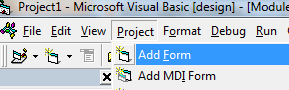
Click Project
Add Form
Click Open
Change name form be : LoginForm

and then please make below design in LoginForm


in Login form please fill below code :

Sub EnableMenu()
FormMainMenu.MenuLogin.Enabled = False
FormMainMenu.MenuLogout.Enabled = True
FormMainMenu.MenuMaster.Enabled = True
FormMainMenu.MenuTransaction.Enabled = True
FormMainMenu.MenuReport.Enabled = True
End Sub
Private Sub Command2_Click()
Unload Me
End Sub
Private Sub Form_Activate()
Text1 = ""
Text2 = ""
Text2.Enabled = False
End Sub
Sub Form_Load()
    Call OpenDB
    Text1.MaxLength = 20
    Text2.MaxLength = 20
    Text2.PasswordChar = "X"
End Sub
Private Sub Text1_KeyPress(KeyAscii As Integer)
    KeyAscii = Asc(UCase(Chr(KeyAscii)))
    If KeyAscii = 13 Then
        Call OpenDB
        Call SearchData
                If RSUsers.EOF Then
                    MsgBox "User not found, Please try again"
                    Text1 = ""
                Else
                Text1.Enabled = False
                Text2.Enabled = True
                Text2.SetFocus
                End If
    End If
End Sub
Private Sub Text2_KeyPress(KeyAscii As Integer)
    KeyAscii = Asc(UCase(Chr(KeyAscii)))
    If KeyAscii = 13 Then
        Command1.SetFocus
    End If
End Sub
Function SearchData()
    Call OpenDB
    RSUsers.Open "Select * From Users where User_Name='" & Text1 & "'", ConnectDB
End Function
Private Sub Command1_Click()
Dim User_Id As String
Dim NamaAdmin As String
Call OpenDB
        RSUsers.Open "Select * from Users where User_Name ='" & Text1 & "' and User_Password='" & Text2 & "'", ConnectDB
        If RSUsers.EOF Then
            MsgBox "Wrong Password, Please try again!"
            Text2 = ""
            Text2.SetFocus
        Else
            Unload Me
            FormMainMenu.Show
            Call EnableMenu
        End If
End Sub
Don't forget to fill below code in MainForm.

Sub DisableMenu()
MenuLogin.Enabled = True
MenuLogout = False
MenuMaster.Enabled = False
MenuTransaction.Enabled = False
MenuReport.Enabled = False
End Sub
Private Sub Form_Load()
Call DisableMenu
End Sub
Private Sub MenuExit_Click()
End
End Sub
Private Sub MenuLogin_Click()
LoginForm.Show vbModal
End Sub

In this Step, you can Download Just Click THIS LINK
Lets see next steps :)

Connection Database Use Module VB 6.0

1:41:00 PM 2
In this steps, we call Step 4, before learn in this step, you must follow :
Step 1 : Cteate New Project
Step 2 : Create Main Form Application
Step 3 : Create Database and Tables

Please Follow steps below for Create Connection Database using Module in VB 6.0
Open your latest Project : Belajar VB


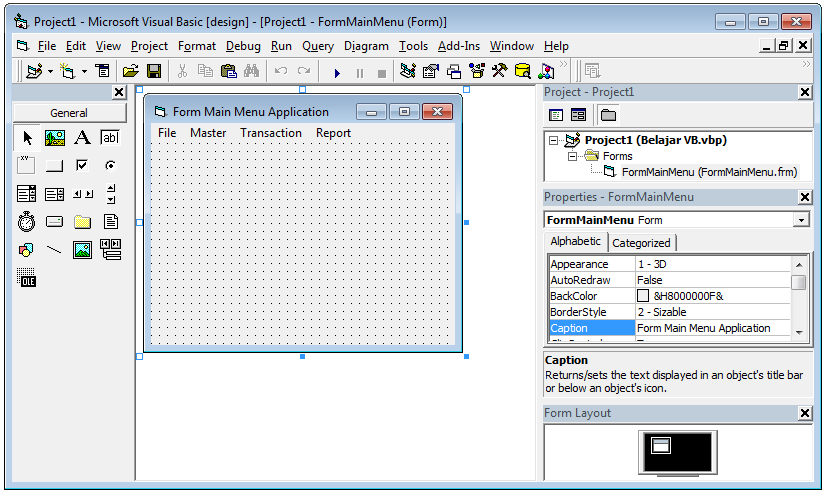
And the latest like below picture :
Click Project
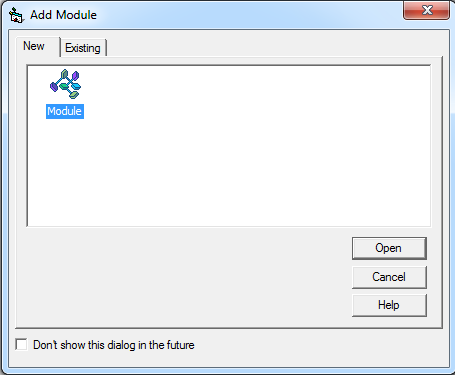
Add Module
Click Open
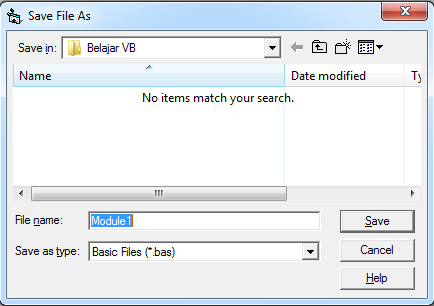
Click save

And then fill below code in the Module1
Public ConnectDB As New ADODB.Connection
Public RSUsers As ADODB.Recordset
Public Sub OpenDB()
Set ConnectDB = New ADODB.Connection
Set RSUsers = New ADODB.Recordset
ConnectDB.Open "PROVIDER=Microsoft.Jet.OLEDB.4.0;Data Source=" & App.Path & "\DBBelajarvb.mdb"
End Sub
in above step is connect to database using Module
Please see next steps :)

Create Database and Master Table VB 6.0

1:32:00 PM 0
In This step, we call Step 3. before learn in this step, you must follow :
Step 1 : Cteate New Project
Step 2 : Create Main Form Application

Before we create Login form, we must create database and Table, because login data is using User name and password which connect to users table.

Please create database using Access 2003
Database Name : DBBelajarvb.mdb

Note :
If you already install Microsoft Office 2007 or 2010 or 2013, you can Download in THIS LINK

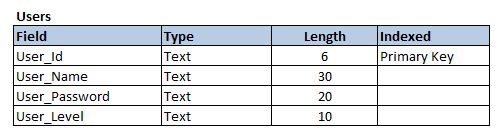
and then you can create Tables like below design :


and to prepare create Login form, you must fill in Users table like below picture :

Please follow next steps :)