Showing posts with label VB 2010 English Version. Show all posts

Visual Studio 2010 Tutorial

1:40:00 AM 0
Welcome to Belajar VB .com and thanks for visiting this Blog. in this blog you can Learn Visual Basic 6.0, VB 2005, VB 2008, VB 2010 and VB 2013.
in this page just focus to Step by step learn Visual Basic 2010. Please follow below lesson

DATABASE CONNECTION VB .NET 2010

Number Description Click to View
1 VB 2010 - DB Access 2003 Connection View
2 VB 2010 - DB Access 2007 Connection View
3 VB 2010 - DB MySQL Connection View
4 VB 2010 - DB SQL Server Connection View

SIMPLE ADD, EDIT & DELETE VB.NET 2010

Number Description Click to View
1 VB 2010 - Simple Add, Edit & Delete DB Access 2003 View
2 VB 2010 - Simple Add, Edit & Delete DB Access 2007 View
3 VB 2010 - Simple Add, Edit & Delete DB MySQL View
4 VB 2010 - Simple Add, Edit & Delete DB SQL Server View

Simple Add, Edit, Delete VB .Net 2010 DB Access 2007 (accdb)

1:35:00 AM 2

Simple Add, Edit, Delete VB 2010 DB Access 2007 (accdb)
In this tutorial visual basic 2010, we will give you lesson regarding How to make project Simple Add, Edit, Delete VB 2010 DB Access 2007 (accdb). In this tutorial also can use If in your computer have installed Access 2010 or 2013. Please following below :

1. Make sure you already installed Visual Studio 2008 in your computer
2. You already also have installed Microsoft Office 2007 (accdb)

Click here to lesson DB Access 2003

At first please make database DB.mdb with table Customer and then you can open Visual Basic 2010 and Design form with below picture

You can click here to download source code

Simple Add, Edit, Delete VB .Net 2010 DB Access 2003 (mdb)

1:29:00 AM 0
Simple Add, Edit, Delete VB 2010 DB Access 2003 (mdb)
In this tutorial visual basic 2010, we will give you lesson regarding How to make project Simple Add, Edit, Delete VB 2010 DB Access 2003 (mdb). Please following below :

1. Make sure you already installed Visual Studio 2008 in your computer
2. You already also have installed Microsoft Office 2003 (mdb)

Click here to lesson DB Access 2007

At first please make database DB.mdb with table Customer and then you can open Visual Basic 2010 and Design form with below picture

You can click here to download source code

VB .Net 2010 - MS Access 2007 (accdb) Connection

1:04:00 AM 0
This is tutorial  How to connect DB Access 2007 (.accdb) using Visual Basic 2010. it's very easy to learning Visual Studio 2010 with us..
Please follow below steps :
  • Step 1: Create New Project use VB 2010
  • Step 2 :Create database and table in MS Access 2007 (.accdb)
  • Step 3 : Design form in VB .Net 2010
#Step 1 :
Make sure you already install VB 2010 in your computer
Click Start in your windows
All Programs

Choose Microsoft Visual Studio 2010

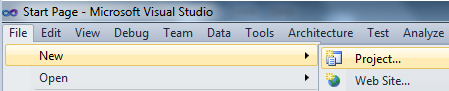
Click File - New - Project

Below after click New Project:
Click OK
After that, please follow STEP 2
#Step 2 :
Create Database use MS Access 2007
Database name : db.accdb
Table name : TBL_PRODUCT
design table like below picture :
fill sample produc

Save db.mdb at : D:\MyApp\MyApp\MyApp\bin\Debug

#Step 3 :
Design form1 like below picture

Just add "Datagridview1" in Form1

Fill below code at Form1

Imports System.Data.OleDb
Public Class Form1
    Dim Conn As OleDbConnection
    Dim da As OleDbDataAdapter
    Dim ds As DataSet
    Dim DBLocation As String
    Sub DBConn()
       
DBLocation = "Provider=Microsoft.ACE.OLEDB.12.0;Data Source=DB.accdb"
        Conn = New OleDbConnection(DBLocation)
        If Conn.State = ConnectionState.Closed Then Conn.Open()
    End Sub
    Private Sub Form1_Load(ByVal sender As System.Object, ByVal e As System.EventArgs) Handles MyBase.Load
        DBConn()
        da = New OleDbDataAdapter("Select * from TBL_Product", Conn)
        ds = New DataSet
        ds.Clear()
        da.Fill(ds, "TBL_Product")
        DataGridView1.DataSource = (ds.Tables("TBL_Product"))
    End Sub
End Class
Here the result :
You can click here to download project / source code above

VB .Net 2010 - MS Access 2003 (mdb) Connection

11:24:00 AM 0
This is tutorial  How to connect DB Access 2003 using Visual Basic 2010. it's very easy to learning Visual Studio 2010 with us..
Please follow below steps :
  • Step 1: Create New Project use VB 2010
  • Step 2 :Create database and table in MS Access 2003
  • Step 3 : Design form in VB .Net 2010
#Step 1 :
Make sure you already install VB 2010 in your computer
Click Start in your windows
All Programs

Choose Microsoft Visual Studio 2010

Click File - New - Project

Below after click New Project:
Click OK
After that, please follow STEP 2
#Step 2 :
Create Database use MS Access 2003
Database name : db.mdb
Table name : TBL_PRODUCT
design table like below picture :

fill sample product
 Save db.mdb at : D:\MyApp\MyApp\MyApp\bin\Debug

#Step 3 :
Design form1 like below picture

Just add "Datagridview1" in Form1

Fill below code at Form1

Imports System.Data.OleDb
Public Class Form1
    Dim Conn As OleDbConnection
    Dim da As OleDbDataAdapter
    Dim ds As DataSet
    Dim DBLocation As String
    Sub DBConn()
        DBLocation = "provider=microsoft.jet.oledb.4.0;data source=DB.mdb"
        Conn = New OleDbConnection(DBLocation)
        If Conn.State = ConnectionState.Closed Then Conn.Open()
    End Sub
    Private Sub Form1_Load(ByVal sender As System.Object, ByVal e As System.EventArgs) Handles MyBase.Load
        DBConn()
        da = New OleDbDataAdapter("Select * from TBL_Product", Conn)
        ds = New DataSet
        ds.Clear()
        da.Fill(ds, "TBL_Product")
        DataGridView1.DataSource = (ds.Tables("TBL_Product"))
    End Sub
End Class
Here the result :
Please click here to download project / source code above